
A client portal is a private, branded workspace where clients log in to see project updates, share files, and pay invoices instead of hunting through email. The most common example types you'll run into are branded client workspaces, project-delivery portals, billing and support self-service centers, onboarding portals, and industry-specific builds for law, healthcare, or finance.
Here's the fast version before we dig into details:
- Branded client workspace — one login, your logo, all client activity in one feed.
- Project-delivery portal — milestones, files, and approvals for agencies and studios.
- Billing/support self-service — invoices, payments, and tickets clients handle themselves.
- Onboarding portal — intake forms, contracts, and welcome materials in sequence.
- Industry-specific portal — compliance-driven layouts for legal, healthcare, or finance clients.
If you serve fewer than a few dozen clients, buying a ready-made portal almost always beats building one. You'll find deeper examples in the RealClients showcase and cloneable starter kits later in this guide.
Pro Tip: Before you compare any portal examples, list the three tasks your clients repeat most often by email. Whatever those are (file requests, status questions, invoice chasing) should be the first three things your portal solves.
| Point | Details |
|---|---|
| Definition | A client portal centralizes files, messages, invoices, and approvals into one login. |
| Match type to job | Pick a portal type based on your top client complaint, not the flashiest demo. |
| Buy over build | Most freelancers and small agencies save time using existing platforms. |
Key Takeaways
The right client portal example matches one of five recognizable types, and the strongest ones combine authentication, file sharing, payments, and milestone tracking in a single branded login.
| Point | Details |
|---|---|
| Match example to job | Pick a portal type based on your top recurring client request, not the flashiest demo. |
| Self-service has limits | Only 14% of service issues resolve fully through self-service, so design around your top three questions. |
| Five features are non-negotiable | Authentication, file sharing, messaging, payments, and milestone tracking form the minimum viable portal. |
| Templates speed up prototyping | Static HTML demos and clone-and-own templates get a working prototype live in hours to days. |
| RealClients fits freelancers directly | Branded logins, e-signatures, and payments built for independent professionals and small agencies. |
Table of Contents
- What Is a Client Portal Example, and What Job Does It Do?
- Why Do Businesses Add Client Portals in the First Place?
- What Features Should a Good Client Portal Example Include?
- Client Portal Examples by Type: What to Look For
- Where to Find Templates and Starter Kits
- How Do You Plan and Launch a Client Portal?
- What Do Good UX and Security Look Like in Practice?
- A RealClients Case Study: Built for Freelancers and Small Agencies
- What Trade-offs Should You Actually Weigh?
- How RealClients Fits Into This
- Frequently Asked Questions
- Sources
What Is a Client Portal Example, and What Job Does It Do?
A client portal example shows how a business solves one or more of three recurring jobs: giving clients secure access to their files, showing them where a project stands, and letting them pay or sign without a phone call. Strip away the branding and every good portal example is built around those three jobs, arranged differently depending on the industry.
Take secure file sharing. A design studio might use it so a client can download final logo files without digging through a Dropbox link that expired three months ago. Progress visibility shows up differently for a law firm, where a client checks a case timeline instead of refreshing their inbox for updates. Billing and e-signatures close the loop: a consultant sends a signed statement of work and an invoice through the same screen, with no separate DocuSign or PayPal request.
Industry standards support these jobs directly. SmartVault's feature research lists secure document sharing, e-signatures, and audit logs among the features that distinguish a real portal from a shared folder. Audit logs matter more than most people realize: they show who viewed or downloaded a file and when, which is the difference between "the client says they never saw it" and having proof they did.
- File sharing example: a photographer's client downloads high-resolution proofs without a link expiring.
- Progress visibility example: a marketing agency's dashboard shows which campaign assets are approved versus pending.
- Billing and e-signature example: a freelance developer gets a contract signed and a deposit paid in the same session.
Why Do Businesses Add Client Portals in the First Place?
Businesses add client portals to cut support volume, get paid faster, and keep clients around longer. Those three outcomes compound: a client who can find their own files without emailing you is also a client who's less likely to feel ignored, which tends to show up in renewal rates.
Self-service only works when it's built well, though. A Gartner survey found only 14% of customer service issues get fully resolved through self-service channels. That statistic is a warning, not an argument against portals: it means a portal with a confusing file structure or no status indicator will just move the complaint from email to a support ticket instead of eliminating it. The businesses that actually see the benefit design the portal around the exact three or four questions clients ask most often.
The practical benefits worth tracking after launch:
- Fewer status-check emails. Clients can see project stage without asking.
- Faster payments. Invoices paid inside the portal tend to clear quicker than emailed PDFs, since the payment link is right there.
- Better retention. A client who feels organized is less likely to shop around at renewal time.
- Lower administrative load. Your team spends less time re-sending files that already exist somewhere in an old email thread.
Track this after launch: average time-to-payment, number of "where's my file" emails per month, and client login frequency. If logins drop off after the first week, your portal isn't sticky enough yet.
What Features Should a Good Client Portal Example Include?
A client portal earns its place in your stack when it covers authentication, file sharing, communication, payments, and reporting in one login. Anything short of that just becomes another tool clients have to remember alongside their inbox.
Here's the checklist to run against any example or demo you're evaluating:
- Authentication and SSO or magic links — one-click, passwordless entry reduces the "I forgot my password" tickets that eat up support time.
- Role-based access — a client sees only their own project; your team sees everything.
- Secure document sharing — version history and download tracking, not a static folder link.
- Messaging — threaded conversation tied to a specific project or file, so context doesn't get lost.
- Payments and e-signatures — invoicing and contract signing inside the same screen the client already trusts.
- Milestone tracking — a visual timeline showing what's done, in progress, and upcoming.
- Integrations — connections to tools like Stripe, PayPal, or your existing project software.
- Audit logs — a record of who accessed what and when.
- Analytics — login frequency, file views, and time-to-payment at a glance.
- Mobile access — most clients check status from their phone, not a desktop.
For regulated industries, add one more layer: encryption at rest and in transit, plus documented access controls, become non-negotiable rather than nice-to-have. A healthcare or financial services client portal that skips this exposes both you and your client to real liability.
IntakeQ's feature documentation shows how practice-focused portals bundle booking, form viewing, and stored payment methods, which maps well to service businesses that need recurring client touchpoints rather than one-off project delivery.
Pro Tip: If you can only launch with five features, pick authentication, file sharing, messaging, payments, and milestone tracking. Analytics and audit logs matter, but they're easier to bolt on after launch than the core five.
Client Portal Examples by Type: What to Look For
Client portal examples fall into five recognizable categories, and each one signals its purpose within the first ten seconds of a demo.
- Branded client workspace. Look for a custom logo, color scheme, and domain on the login screen. Traits: single dashboard feed, unified notifications, and a "recent activity" list. A good demo shows the client's name and project front and center, not a generic app shell.
- Project-delivery/agency portal. Look for a visible milestone tracker and file version history. Traits: approval buttons on deliverables, threaded comments per asset, and a timeline view. Within ten seconds you should see exactly what's pending client action.
- Onboarding and milestone portals. Look for a step-by-step intake sequence. Traits: progress bar, embedded forms, and a welcome message that adjusts by client type. The WaymakerOS blueprint demonstrates this well with phased visibility controls tied to onboarding stage.
- Billing and support self-service centers. Look for a clear invoice list and a support ticket button. Traits: payment method storage, downloadable receipts, and status tags like "paid" or "overdue" in plain sight.
- Industry-specific portals (legal, healthcare, finance). Look for compliance language and document categorization by type (contracts, statements, medical records). Traits: stricter access controls, e-signature requirements, and audit trails visible to the client, not just the admin.
Liferay's overview of customer portal examples walks through several of these categories with screenshots, and the RealClients showcase shows how they look when built specifically for freelancers and small agencies rather than enterprise support desks.
Where to Find Templates and Starter Kits
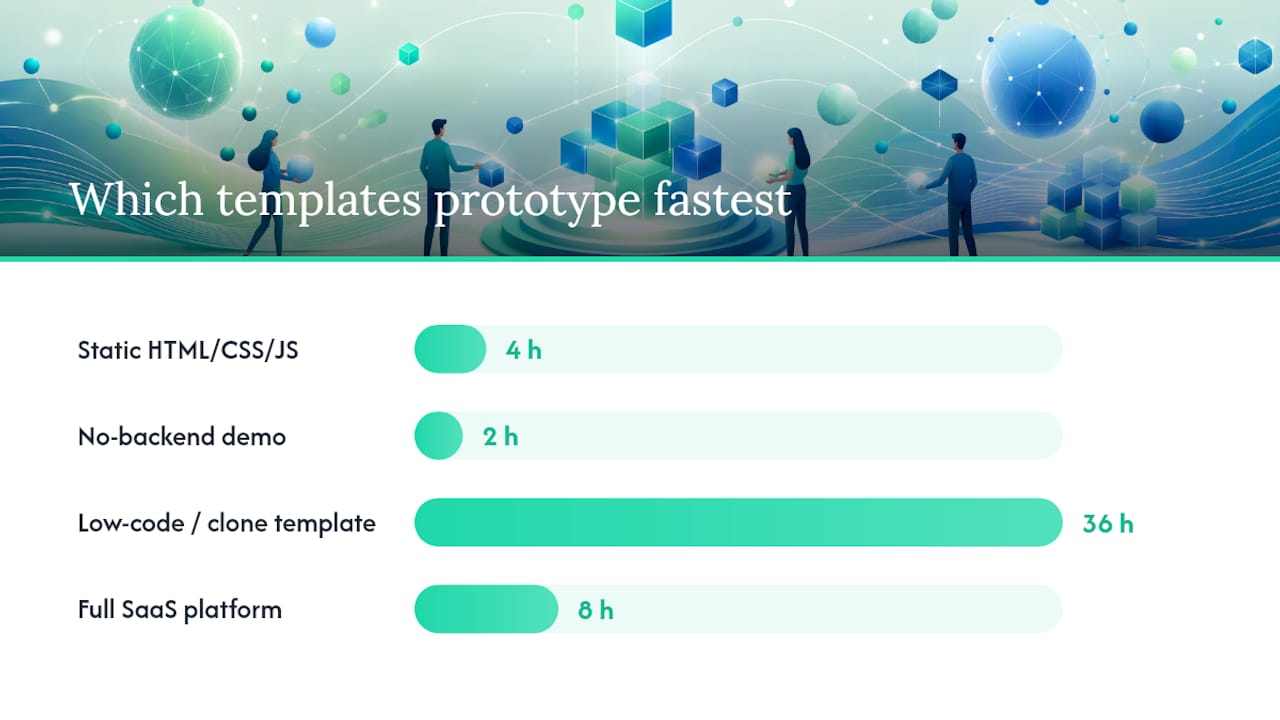
Four template types cover most prototyping needs, and picking the wrong one wastes more time than it saves.
A static HTML/CSS/JS prototype works when you just need to show a client or partner what the flow feels like. The open-source client portal template on GitHub runs with no backend at all and demonstrates a login screen, project list, milestone tracker, file section, and message thread in one afternoon. It's a mockup, not a production system.
A no-backend demo is the fastest way to pitch an idea internally before committing budget. Expect a working prototype in hours, not days.
Low-code app templates and cloneable workspace templates sit a step up. Platforms like Taskade offer clone-and-own client portal templates with built-in auth and automations, which can get you from zero to a functional (if generic) portal in a day or two.
| Template type | Time to first prototype | Best for |
|---|---|---|
| Static HTML/CSS/JS | Hours | Pitching the concept internally |
| No-backend demo | Hours | Quick stakeholder buy-in |
| Low-code/clone template | 1 to 2 days | Testing a workflow before committing |
| Full SaaS platform | Same day (subscription) | Actual client-facing launch |
One caution: no-backend templates are prototypes, not places to store real client data. Auth and encryption need real planning before anything sensitive touches the system.
How Do You Plan and Launch a Client Portal?
Launching a portal follows a predictable sequence, whether you're customizing a template or subscribing to a platform.
- Map your data model. Decide what a "client," "project," and "file" record actually needs to contain.
- Choose your authentication method. Magic links reduce friction; SSO fits teams already using Google or Microsoft accounts.
- Set access permissions. Confirm each client sees only their own data before you invite anyone.
- Connect integrations. Link payment processors like Stripe or PayPal, plus any project tools you already use.
- Migrate existing content. Move active contracts, invoices, and files from email and shared drives into the portal.
- Run a pilot with two or three clients. Watch where they get confused before rolling out to everyone.
- Launch and monitor adoption. Track logins in the first two weeks; low activity signals a UX problem, not a client problem.
| Build approach | Typical timeline | Cost shape |
|---|---|---|
| DIY template | 1 to 2 weeks | Minimal (time cost only) |
| Templated SaaS platform | 1 to 3 days | Typical subscription pricing |
| Custom build | 4 weeks | Ambitious (developer time plus hosting) |
For most freelancers and small agencies, a subscription platform beats a custom build on both timeline and cost, unless your workflow has genuinely unusual requirements a template can't flex to fit.
What Do Good UX and Security Look Like in Practice?
The best client portal examples share a UX pattern: the landing page tells the client exactly what's new since their last visit, without them having to click around to find it.
Beyond that first impression, look for contextual navigation (menus that change based on project stage, not a generic sidebar), visible status indicators (a color-coded tag beats a paragraph of explanation), and mobile responsiveness that doesn't require pinching and zooming. Client review patterns on sites like G2 consistently point to onboarding clarity and easy file access as the two factors that make or break adoption.
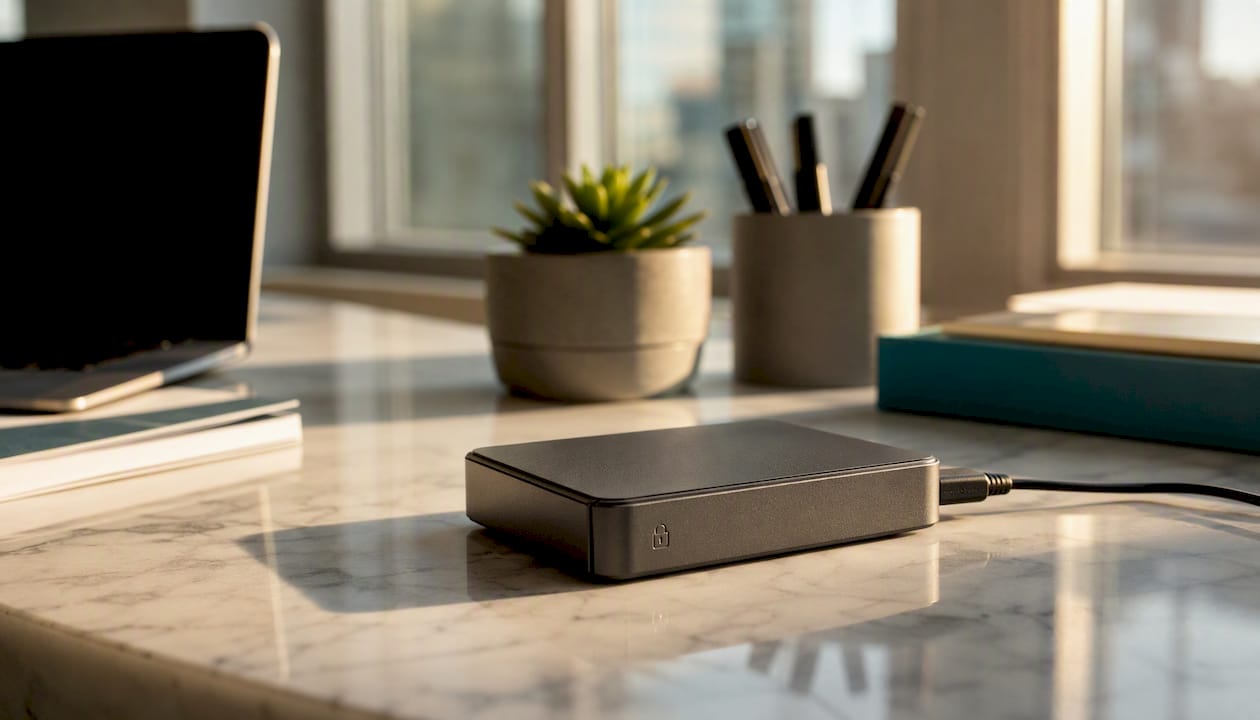
Security is where corners get cut, usually invisibly. Confirm encryption at rest and in transit, not just a padlock icon on the login page. Audit logs should record every file view and download. Role-based access needs to be tested, not assumed. And for anyone storing PII, contracts, or medical records, that means documented access controls and a clear policy on data retention, not just a checkbox in a settings menu.
Pro Tip: Ask any vendor demo one blunt question: "Can you show me the audit log for a file I just opened?" If they can't pull it up in ten seconds, the feature probably doesn't really exist.
A RealClients Case Study: Built for Freelancers and Small Agencies
RealClients built its portal specifically around the workflow of independent professionals rather than enterprise support teams. That distinction shows up in the feature set: branded login screens with no enterprise IT setup required, e-signatures and Stripe or PayPal payments built directly into the same workspace, milestone tracking tied to project stage, and granular permissions so each client only ever sees their own files.
Freelancers and small studios using RealClients have collectively invoiced [internal_data] through their portals, a figure that reflects real payment activity rather than projected usage. That volume matters because it shows the payment and e-signature features aren't an afterthought bolted onto a file-sharing tool. They're built to move money, not just move documents.
- Branded login: custom domain and logo, no generic app shell.
- E-signatures: contracts signed inside the same portal a client already trusts.
- Payments: Stripe and PayPal integrated directly, no separate invoicing tool.
- Milestone tracking: clients see project stage without asking.
- Granular permissions: each client's workspace stays private to them.
For a solo consultant or a three-person design studio, that combination replaces four or five separate tools with one login.
What Trade-offs Should You Actually Weigh?
Most portal decisions come down to speed versus control, and cost versus customization. A template gets you live fast but locks you into someone else's design choices. A custom build gives you exactly what you want, and takes months to get there. Neither is wrong, but pretending you can have both without paying for it in time or money is where most projects stall.
Start with a minimum viable portal: authentication, file sharing, messaging, and payments. Everything else can wait until clients tell you what they're missing. This week, pick one client to pilot with, list your top three recurring email requests, and check whether your current setup already handles any of them.
How RealClients Fits Into This
RealClients replaces the scattered mix of email, shared drives, and separate invoicing tools with one branded login your clients actually recognize as yours. Every feature covered in this guide, from role-based access to e-signatures to Stripe and PayPal payments, comes built in, so you're not stitching together four subscriptions to get one working portal.
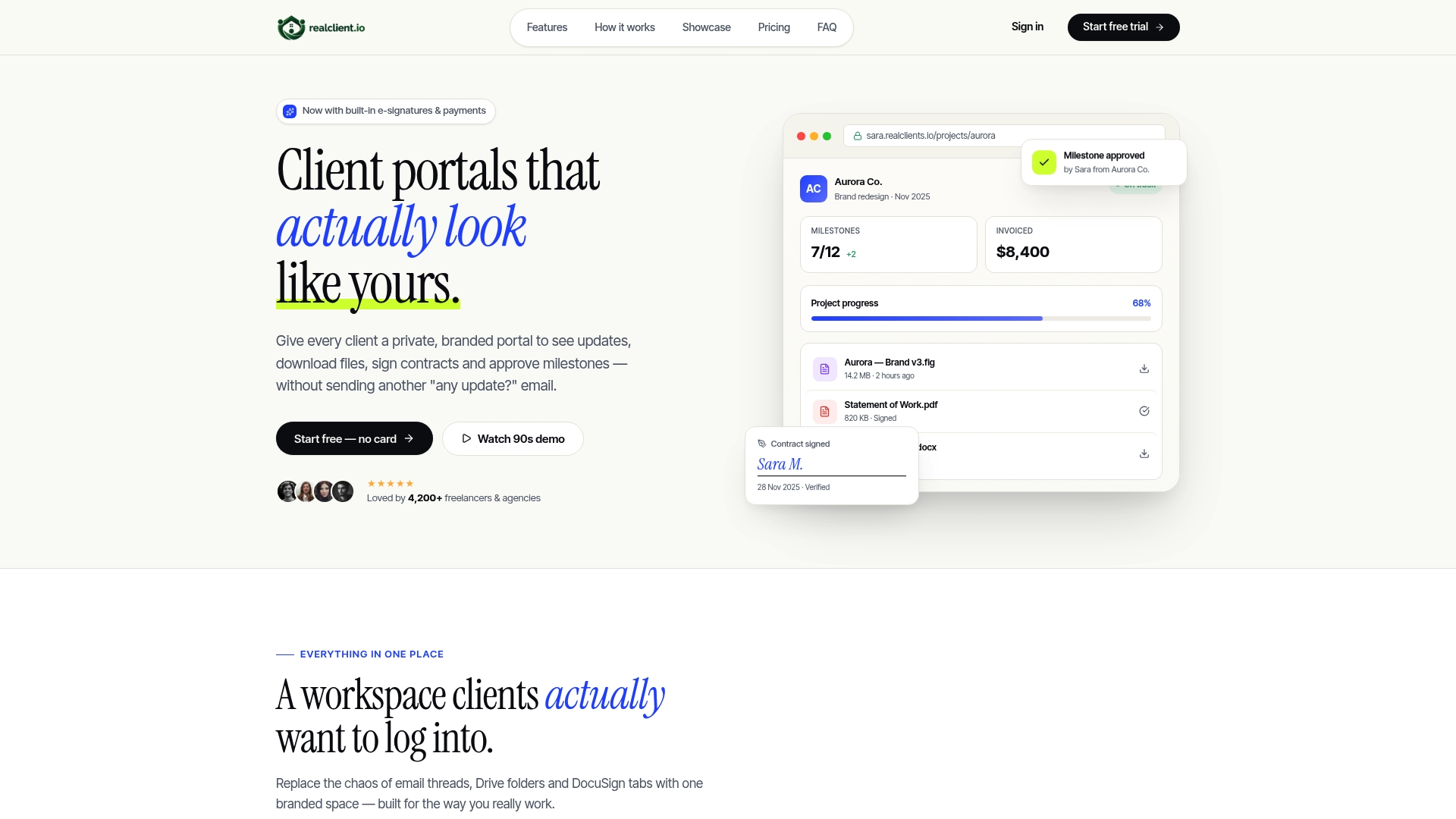
If you've been evaluating templates or comparing custom client portal software against off-the-shelf platforms, the fastest way to know if RealClients fits is to see it running with your own branding. Check the pricing tiers to find the plan that matches your client volume, and start a free plan today to build your first workspace before your next client kickoff call.
Frequently Asked Questions
What should every client portal include at minimum? Authentication, secure file sharing, messaging, payment processing, and milestone tracking. Everything beyond those five is worth adding later based on what clients actually ask for.
What's the best client portal for a solo freelancer? A platform built specifically for independent professionals, like RealClients, tends to fit better than enterprise software designed for large support teams with dozens of agents.
What are common client portal example types? Branded client workspaces, project-delivery portals, onboarding portals, billing and support self-service centers, and industry-specific portals for legal, healthcare, or finance clients.
Should I build a custom portal or buy an existing platform? Buy unless your workflow has genuinely unusual requirements. A subscription platform typically launches in days, while a custom build takes one to three months and ongoing developer maintenance.
How long does it take to launch a client portal? A templated SaaS platform can go live in one to three days. A fully custom build usually takes four to twelve weeks depending on integrations and data migration needs.
Sources
- Gartner survey finds only 14 percent of customer service issues are fully resolved in self-service
- 10 Must-Have Client Portal Features | SmartVault
- WaymakerOS Blueprint — Client Portal
- Secure Client Portal Features - Support & Resource Hub
- What Is a Customer Portal? Features, Benefits, and Examples