
Client portal SSO lets your portal act as the Service Provider (SP) and delegate authentication to your customers' corporate Identity Providers (IdPs) — whether that's Microsoft Entra ID, Okta, or Google Workspace — so users sign in once with their existing corporate credentials and land directly in the portal without a separate password. Both SAML 2.0 and OpenID Connect (OIDC) support this pattern, and a well-configured integration handles both SP-initiated and IdP-initiated flows.
When it works correctly, client portal SSO delivers three concrete wins:
- Fewer password resets — users authenticate through their employer's IdP, so the portal never owns the credential lifecycle
- Centralized deprovisioning — disabling a user in the IdP immediately revokes portal access, especially when SCIM is active
- Enforced MFA — enterprise IdPs can push phishing-resistant MFA policies to every portal session, removing the burden from the portal itself
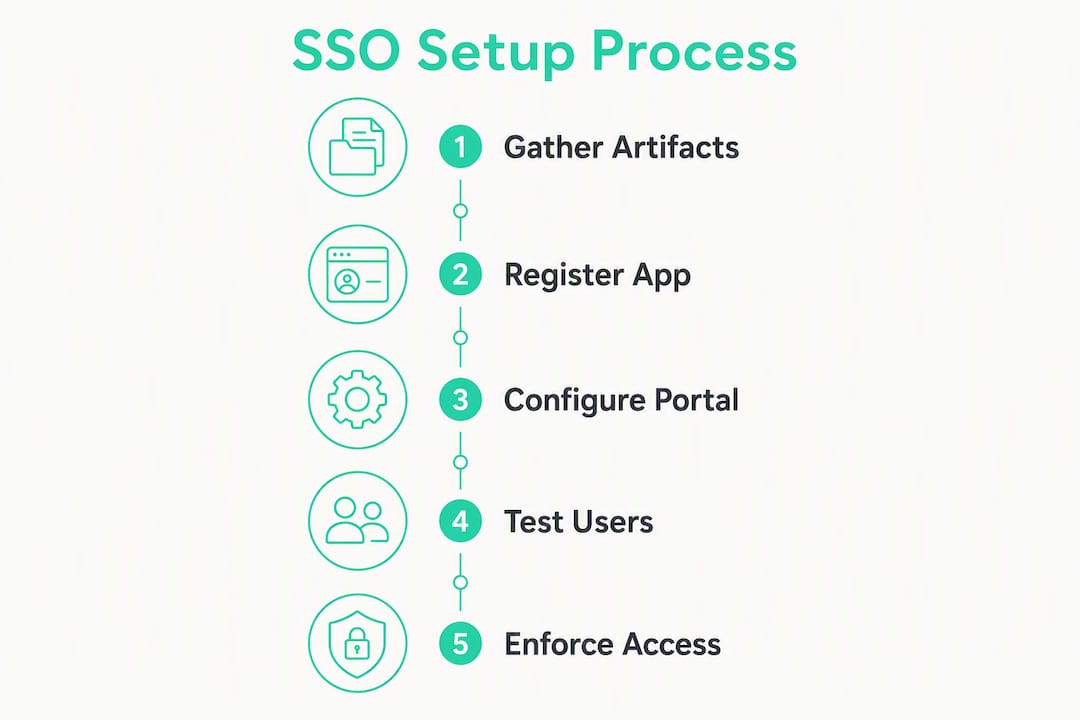
Before you touch a single configuration screen, gather three things: IdP admin access with permission to register enterprise applications, portal admin access to the SSO configuration panel, and a dedicated test account whose email matches a portal user record.
Table of Contents
- What prerequisites does client portal SSO require?
- How do you register the portal as an app in the customer's IdP?
- How do you configure SSO settings on the portal side?
- How do you create test users and run SP- and IdP-initiated tests?
- How do you enforce SSO-only access and handle fallback authentication?
- How does per-client federated SSO work across multiple IdPs?
- What security controls should you apply to client portal SSO?
- Quick troubleshooting checklist for SSO failures
- What does SSO implementation actually cost and how long does it take?
- How does Realclient support SSO for your client portal?
- Key Takeaways
- Realclient makes client portal authentication straightforward
What prerequisites does client portal SSO require?
Getting the prerequisites wrong is the most common reason SSO projects stall. Collect every artifact before you open the IdP console.
Accounts and permissions
- IdP admin rights to create or register an enterprise application (in Microsoft Entra ID this means the Application Administrator or Global Administrator role; in Okta, Super Admin or Org Admin)
- Portal admin access with visibility into the SSO settings screen, where you'll find Client ID/Secret fields and metadata endpoint inputs
- A test user account on both sides whose email address matches exactly — SSO matching is case-sensitive in most implementations
Artifacts you must have ready
- SP ACS (Assertion Consumer Service) URL or redirect URI from the portal
- Entity ID / SP Identifier (a URI, not a URL — it identifies your portal to the IdP)
- Logout URL for single logout (SLO) support
- Expected claims: at minimum
email,given_name,family_name; optionallygroupsfor role mapping - For SAML: the IdP's x.509 signing certificate; for OIDC: the IdP's discovery document URL or JWKS endpoint
Environment and recovery
- Confirm NTP sync on your portal server — clock skew above five minutes breaks SAML assertion validation
- Separate staging and production configurations; some portals encrypt client secrets so they are machine-specific and cannot be copied between installs, which means environment migrations require re-registration
- Document a recovery plan: keep "SSO optional" mode active until testing is complete so users are never locked out
Pro Tip: Set up a dedicated client-facing IdP instance rather than reusing your internal employee directory. Mixing internal employee identities with external client identities creates access-control risks that are difficult to audit and even harder to unwind.
How do you register the portal as an app in the customer's IdP?
The registration step happens entirely inside the customer's IdP. Your job is to supply the portal's SP values and collect the IdP's metadata in return.

Gallery app vs. custom app
Most major IdPs maintain an app gallery. If your portal is listed there, use the gallery entry — it pre-populates protocol settings and reduces misconfiguration. If it isn't listed, create a custom SAML or OIDC application. Custom apps give you full control over claim mappings, which is often preferable for portals with non-standard attribute requirements.
Fields to copy from the portal into the IdP
- ACS / Redirect URL — example:
https://portal.yourcompany.com/auth/saml/callback(SAML) orhttps://portal.yourcompany.com/auth/oidc/callback(OIDC) - Entity ID / SP Identifier — example:
https://portal.yourcompany.com/saml/metadata - Logout URL — example:
https://portal.yourcompany.com/auth/logout - NameID format — use
emailAddressfor most portals;persistentwhen you need a stable opaque identifier - Audience — typically the same value as the Entity ID
Platform-specific notes
Microsoft Entra ID (Azure AD): Navigate to Enterprise Applications > New Application > Create your own application. Select "Integrate any other application you don't find in the gallery" for a custom SAML app. Paste the ACS URL into the Reply URL field and the Entity ID into the Identifier field. Under Attributes & Claims, add email, givenname, and surname mappings. Microsoft's Entra documentation covers the full wizard in detail.
Okta: Go to Applications > Create App Integration, choose SAML 2.0 or OIDC, and paste the portal's SP values. Okta generates a metadata XML file you download and upload to the portal.
Google Workspace: Google supports SAML for custom apps via Admin Console > Apps > Web and mobile apps > Add custom SAML app. For OIDC, use Google's OAuth 2.0 flow with the discovery endpoint at https://accounts.google.com/.well-known/openid-configuration.
SAML vs. OIDC: which to choose
SAML 2.0 is the safer default for enterprise clients already running Entra ID or Okta — it's battle-tested and every major IdP supports it. OIDC is the better choice when the portal is a modern single-page app or when you need refresh token flows for background API calls. Vendor documentation consistently requires admins to supply x.509 certificates for SAML and discovery/JWKS endpoints for OIDC — collect the correct artifact for your chosen protocol before you start.
How do you configure SSO settings on the portal side?
With the IdP registration complete, switch to the portal admin panel. This is where you paste the IdP's metadata and define how incoming assertions map to portal user records.
Core fields to fill in
| Portal field | What to paste / enter | Example value |
|---|---|---|
| IdP Metadata URL | Discovery or federation metadata URL from the IdP | https://login.microsoftonline.com/{tenant}/federationmetadata/2007-06/federationmetadata.xml |
| Client ID (OIDC) | Application (client) ID from the IdP app registration | a1b2c3d4-xxxx-xxxx-xxxx-xxxxxxxxxxxx |
| Client Secret (OIDC) | Secret value generated in the IdP — store server-side only | (never expose in browser) |
| JWKS / Discovery URL | IdP's OpenID Connect discovery endpoint | https://login.microsoftonline.com/{tenant}/v2.0/.well-known/openid-configuration |
| ACS URL (SAML) | The portal's own callback URL — pre-populated | https://portal.yourcompany.com/auth/saml/callback |
| Entity ID | The portal's SP identifier — pre-populated | https://portal.yourcompany.com/saml/metadata |
| NameID format | Match what you set in the IdP | urn:oasis:names:tc:SAML:1.1:nameid-format:emailAddress |
| Single Logout URL | Portal's SLO endpoint | https://portal.yourcompany.com/auth/logout |
Claims mapping
Map IdP attributes to portal user fields explicitly. A typical minimum set:
http://schemas.xmlsoap.org/ws/2005/05/identity/claims/emailaddress→ portalemailhttp://schemas.xmlsoap.org/ws/2005/05/identity/claims/givenname→ portalfirst_namehttp://schemas.xmlsoap.org/ws/2005/05/identity/claims/surname→ portallast_namegroups(if available) → portal role or permission tier
Auto-provisioning with SCIM
When SCIM is enabled, the IdP pushes user create, update, and deactivate events to the portal automatically. SCIM requires at minimum userName (mapped to email), name.givenName, name.familyName, and active. Deprovisioning sets active: false, which suspends portal access immediately — no manual cleanup needed.
Token and session settings
Access tokens should use short lifetimes (15–60 minutes is a common default).
— this gives users a smooth session without the security exposure of long-lived credentials. Set inactivity timeouts appropriate to your clients' compliance requirements.Pro Tip: Keep client secrets on the server side and use server-side routes for token exchanges. A secret that touches the browser DOM is a secret that can be exfiltrated.
How do you create test users and run SP- and IdP-initiated tests?
Never enable SSO for live users before completing a structured test pass. The following numbered checklist covers both flows.
- Create a test user in the IdP with an email address that exactly matches an existing portal user record (same case, same domain).
- Assign the test user to the portal's IdP application.
- SP-initiated test: Open the portal login page in a private browser window. Enter the test user's email. The portal should redirect to the IdP login page. Authenticate. Confirm the portal receives the assertion, matches the user, and lands on the correct dashboard.
- IdP-initiated test: Log into the IdP's My Apps portal (or Okta dashboard). Click the portal app tile. Confirm the portal receives the assertion without a prior SP redirect and lands correctly.
- Open portal logs and verify: assertion received, NameID matched, audience validated, signature verified, and no timestamp errors.
- Open IdP logs and confirm: authentication event recorded, claims sent, no policy blocks.
- Test single logout: log out from the portal and confirm the IdP session terminates (and vice versa if SLO is configured).
- Sign off each item before proceeding.
What to look for in logs
Invalid audience→ Entity ID mismatch between IdP and portalSignature validation failed→ wrong x.509 certificate uploaded, or certificate expiredNameID not found→ email in the assertion doesn't match any portal user recordNotOnOrAftertimestamp errors → clock skew; sync NTP on the portal server- Redirect URI mismatch (OIDC) → ACS/callback URL in the IdP doesn't match the portal's registered redirect URI exactly, including trailing slashes
How do you enforce SSO-only access and handle fallback authentication?
Once testing passes, you can move from "SSO optional" to "SSO only." The difference is significant for your support team.
SSO optional vs. SSO only
- SSO optional: users can still log in with a portal password. Existing credentials remain active. Good for phased rollouts.
- SSO only: the portal disables password-based login for affected users. The login page redirects directly to the IdP. Existing portal passwords are invalidated.
Fallback patterns
Not every user will have an IdP account. Contractors, temporary collaborators, and emergency access scenarios need a safe alternative:
- Magic links — a one-time, contact-specific email link that grants time-limited portal access without an IdP handshake. Magic links are contact- and app-specific, making them a practical fallback for non-IdP users while maintaining security boundaries. Restrict them to specific roles (e.g., guest or contractor) rather than making them universally available.
- Delegated admin creation — a portal admin manually creates a local account for edge cases and sets a temporary password with a forced reset on first login.
- Email-based one-time codes — similar to magic links but code-based; useful when link-click environments are restricted (some email security gateways strip URLs).
Operational considerations
Communicate the cutover date to client IT teams at least two weeks in advance. Provide a one-page onboarding checklist covering IdP app assignment, test login steps, and the support contact for failures. Log every SSO bypass event — magic link use, admin-created accounts, and password resets — for audit purposes.
Pro Tip: Require step-up authentication for high-risk portal actions (contract signing, payment approvals, file deletion) even when SSO is active. Treat the SSO session as baseline authentication, not blanket authorization for sensitive operations.
How does per-client federated SSO work across multiple IdPs?
Large enterprise clients expect per-tenant IdP mapping. A portal that only supports one global IdP configuration will lose those deals.
Three architecture patterns
- Single global IdP: all portal clients authenticate through one IdP. Simple to manage, but forces every client to federate into your IdP rather than their own. Rarely acceptable for enterprise buyers.
- Per-tenant IdP mapping: each client organization has its own IdP metadata entry in the portal. At login, the portal detects the client's domain and routes to the correct IdP. This is the standard pattern for B2B portals.
- On-demand / self-service IdP registration: clients upload their own IdP metadata through a self-service admin UI. Scales well for large customer bases without requiring engineering work per client.
How login discovery works
The portal needs to identify which IdP to use before it can redirect. Common approaches:
- Email domain mapping — the portal reads the user's email domain and looks up the associated IdP configuration
- Tenant chooser page — the user selects their organization from a list before authentication begins
- IdP-initiated tokens with tenant identifiers — the IdP embeds a tenant ID in the assertion's RelayState or a custom claim
Edge cases to plan for
- Clients with multiple IdPs (e.g., post-merger environments) — support multiple metadata entries per tenant and let the user choose
- Overlapping email domains — use a unique tenant identifier rather than relying on domain alone
- Contractors who need access to multiple client tenants — issue them a portal-local account with MFA rather than forcing them into a single IdP
Pro Tip: Build an admin UI that lets clients upload their own IdP metadata XML or paste a discovery URL. Requiring a code change per client is a scaling bottleneck — and a support burden — that compounds quickly as your customer base grows.
What security controls should you apply to client portal SSO?
Keeping client secrets server-side and out of the browser reduces the attack surface significantly. That's the foundation. Build the rest of your security posture on top of it.
MFA and session controls
- Enforce phishing-resistant MFA at the IdP level (FIDO2/WebAuthn or hardware tokens where compliance requires it)
- Set access token lifetimes to 15–60 minutes; use rotating refresh tokens rather than long-lived sessions
- Configure inactivity timeouts aligned to your clients' compliance frameworks (SOC 2, HIPAA, FedRAMP each have different expectations)
- Require step-up authentication for high-risk portal actions regardless of SSO session state
Secret management
- Store client secrets in an encrypted vault (AWS Secrets Manager, HashiCorp Vault, or Azure Key Vault) — never in environment variables committed to source control
- Rotate secrets on a defined schedule; treat environment migrations as re-registration events because machine-bound encryption means secrets often cannot be ported between installs
- Audit secret access logs and alert on unexpected reads
User lifecycle and monitoring
- Enable SCIM deprovisioning so that disabling a user in the IdP immediately suspends portal access
- Audit orphaned accounts quarterly — users whose IdP accounts were deleted but whose portal records remain active
- Log assertion attributes on every authentication event: NameID, audience, issuer, and timestamp
- Alert on anomalous patterns: impossible travel, rapid MFA failures, and off-hours access from new IP ranges
Go-live security checklist
- Client secrets stored server-side in an encrypted vault
- x.509 certificate or JWKS endpoint validated and not expired
- SCIM deprovisioning tested with a real user deactivation
- MFA enforced at the IdP for all portal-assigned users
- Step-up authentication configured for high-risk actions
- SSO bypass events (magic links, admin accounts) logged and alerted
- Inactivity timeout set per compliance requirement
Quick troubleshooting checklist for SSO failures
When a client reports they can't log in, work through this list in order before escalating.
- Certificate/signature error — verify the x.509 certificate in the portal matches the one currently active in the IdP; certificates expire and IdPs rotate them without always notifying SP admins
- Clock skew — check NTP sync on the portal server; SAML assertions are time-bounded and a drift above five minutes causes immediate rejection
- Invalid audience — the Entity ID in the portal doesn't match the Audience value the IdP is sending; re-check both fields character-for-character
- Missing required claims — the IdP isn't sending
emailor another mapped attribute; verify the attribute/claims configuration in the IdP app registration - Redirect URI mismatch (OIDC) — the callback URL registered in the IdP differs from the portal's ACS URL, including protocol, subdomain, path, and trailing slash
- NameID mismatch — the email in the assertion doesn't match any portal user record; confirm the test user's email is identical in both systems
- Token expiration — the assertion's
NotOnOrAfterhas already passed; usually a clock skew issue, but can also indicate a delayed network hop
Immediate mitigations while diagnosing:
- Switch the affected tenant back to "SSO optional" so users can log in with a portal password while you investigate
- Disable SSO for the affected tenant entirely if the issue is widespread
- Re-run the SP-initiated test flow with a known-good test account to isolate whether the issue is user-specific or configuration-wide
Escalate to the IdP admin when you see a malformed SAML assertion, an expired certificate on the IdP side, or a signature validation failure that persists after re-uploading the certificate.
What does SSO implementation actually cost and how long does it take?
Realistic planning prevents the two most common project failures: underestimating engineering time and missing hidden per-client overhead.
Typical timeline
| Phase | Duration | Key activities |
|---|---|---|
| Planning and prerequisites | 1–3 days | Gather artifacts, align IdP and portal admins, document test plan |
| IdP registration and portal config | 1–3 days | Register app, paste SP values, configure claims, enable SCIM |
| Testing and remediation | 1–5 days | SP- and IdP-initiated tests, fix certificate/claim issues, re-test |
| Rollout and support | 1–2 weeks | Communicate to client IT, monitor first-wave logins, handle exceptions |
Enterprise environments with multiple client tenants, custom claim requirements, or compliance reviews will sit at the upper end of each range.
Cost drivers
| Cost bucket | What drives it |
|---|---|
| IdP licensing | Per-active-user fees; SCIM provisioning often requires a higher tier (e.g., Entra ID P1 for automatic provisioning) |
| Portal subscription tier | SSO and enterprise features are typically gated behind premium plans |
| Engineering time | Secret handling, SCIM integration, per-client metadata management |
| Support staff time | Client IT onboarding, rollout communications, first-week incident handling |
| Long-term maintenance | Certificate rotation, secret rotation, per-client onboarding overhead as customer base grows |
The hidden cost most teams miss is per-client onboarding overhead. Each new enterprise client requires a metadata upload, a test pass, and a support handoff. Without a self-service admin UI, that overhead compounds fast. Factor it into your total cost of ownership before committing to a manual per-client workflow.
How does Realclient support SSO for your client portal?
Realclient's client portal features include native support for both SAML 2.0 and OpenID Connect (OIDC), per-tenant IdP metadata storage, SCIM-based auto-provisioning, and an SSO-only enforcement toggle — everything covered in this guide maps directly to controls available in the platform.
What's available
- SAML 2.0 and OIDC protocol support for enterprise IdP integrations
- Per-tenant IdP metadata entries so each client organization authenticates through its own IdP
- SCIM provisioning and deprovisioning for automated user lifecycle management
- SSO-only toggle to disable portal-password login for SSO-enrolled tenants
- Bank-grade security controls covering secret storage, session management, and audit logging
High-level setup steps in Realclient
- Navigate to Admin > Security > SSO to find your portal's ACS URL, Entity ID, and metadata endpoint — these are the values you paste into the customer's IdP.
- After registering the portal app in the IdP, return to the Realclient SSO panel and paste the IdP metadata URL or upload the metadata XML.
- Map claims to portal user fields (email is required; first name, last name, and groups are optional but recommended).
- Use the Save and Test workflow to validate the IdP metadata before enabling SSO for any live tenant.
- Enable the SSO-only toggle for the tenant once testing passes.
Pro Tip: Use Realclient's staging mode and the "Save and Test" button to validate every new client's IdP metadata before flipping the production SSO switch. A failed test in staging costs minutes; a failed cutover in production costs hours and a support escalation.
Key Takeaways
Successful client portal SSO requires the portal to act as the SP, delegate to the customer's IdP via SAML 2.0 or OIDC, and complete both SP-initiated and IdP-initiated test flows before enforcing SSO-only access.
| Point | Details |
|---|---|
| Prepare artifacts first | Collect ACS URL, Entity ID, logout URL, and x.509 cert or JWKS endpoint before touching any IdP console. |
| Test both SSO flows | Run SP-initiated and IdP-initiated tests with a dedicated test account and verify portal and IdP logs before go-live. |
| Enforce SSO-only carefully | Switch to SSO-only after testing passes; keep magic links or delegated admin accounts as fallbacks for contractors and edge cases. |
| Plan for per-client scale | Per-tenant IdP mapping and a self-service metadata upload UI prevent per-client onboarding from becoming an engineering bottleneck. |
| Realclient supports the full stack | Realclient's enterprise portal platform covers SAML 2.0, OIDC, SCIM, per-tenant IdP mapping, and SSO-only enforcement out of the box. |
Why Realclient recommends SSO-first for multi-app client environments
SSO-first is the right default for any client portal serving enterprise buyers who already run Microsoft Entra ID, Okta, or Google Workspace. The deprovisioning argument alone justifies the setup cost: when a client employee leaves, one action in the IdP revokes access across every connected application simultaneously. Without SSO, portal admins are dependent on a client IT team remembering to send a deactivation request — and that dependency fails regularly.
That said, SSO isn't the right answer for every customer. For smaller clients using a single portal with no existing IdP infrastructure, strong MFA enforced at the portal level is often sufficient. Magic links work well for occasional collaborators who don't warrant a full IdP account. The goal is matching the authentication architecture to the actual risk and operational complexity of each client relationship, not applying enterprise controls uniformly.
The clients who benefit most from SSO are those navigating multiple integrated systems — portals, project tools, file storage, e-signature workflows. When users cross application boundaries frequently, a single corporate credential that follows them is a genuine productivity and security improvement.
Realclient makes client portal authentication straightforward
If you're configuring SSO for a client portal and want a platform that handles the protocol complexity without requiring custom development, Realclient is built for exactly that. It supports SAML 2.0 and OIDC natively, stores per-tenant IdP metadata so each enterprise client authenticates through their own identity provider, and includes SCIM provisioning so user lifecycle events sync automatically.
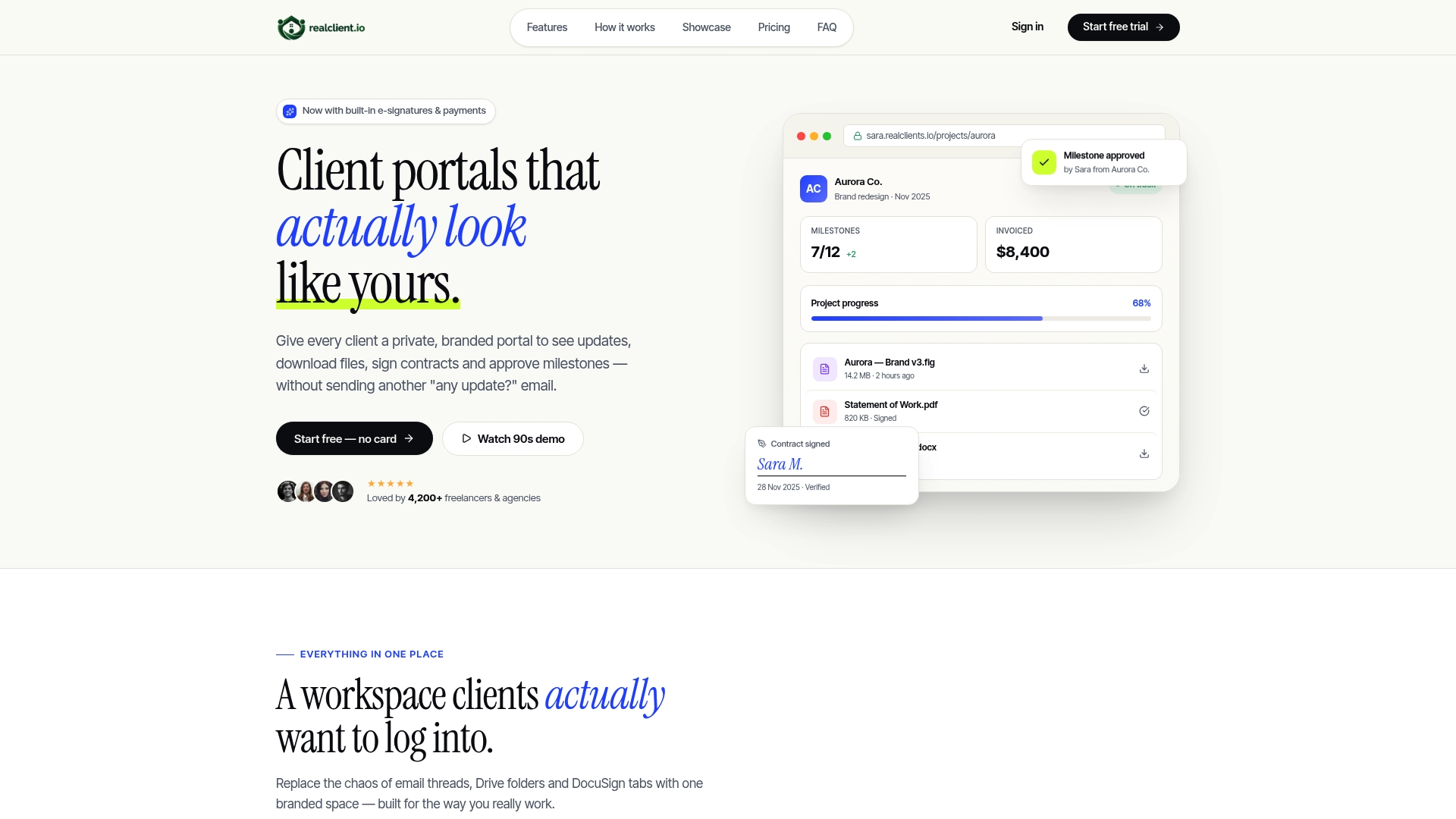
Beyond SSO, Realclient gives freelancers, agencies, and small businesses a complete client workspace: branded portals, e-signatures, invoicing, Stripe and PayPal payment processing, file sharing, and project milestone tracking, all under one roof. The pricing plans are tiered by client count and feature set, so you only pay for what your operation actually needs. Start a free trial at realclient.io and connect your first enterprise IdP in the same session.