
Version history lives under two places: the file's title menu ("Version History") or the "Last edit" link in Google's toolbar. Click either one and you can see who edited what, compare an older draft against the current file, and restore any earlier copy with one click. The exact path shifts slightly by platform, which is why you need the specifics below.
TL;DR:
- Version history can be accessed through specific menu paths on each platform: Microsoft 365 in the title menu, Google Docs near the "Last edit," and Dropbox via right-click options.
- Only the file owner or users with editing permissions can delete or create named versions, which is limited by account type or admin settings.
- Using track changes during active edits and creating named versions after client approval provides a comprehensive review and audit trail.
- Files must be stored in cloud platforms like OneDrive, SharePoint, Google Drive, or Dropbox to track versions effectively; local files do not record history.
- For best version management, name milestones immediately, link approvals to specific versions, and export final versions as PDFs for secure record-keeping.
Table of Contents
- How Do You View and Restore Versions in Microsoft 365, Google Docs, and Dropbox?
- Track Changes vs Version History: What Each One Actually Records
- Why Can't You See Version History, and How Do You Fix It?
- Best Practices for Managing Version History on Client Projects
- How Realclient Handles Versioning and Audit Trails for Client Work
- A Freelancer's Checklist for Client Handoff
- Get Version History and Client Approvals in One Place
- Where to Go for Official Version History Documentation
- Sources
How Do You View and Restore Versions in Microsoft 365, Google Docs, and Dropbox?
Every major platform hides version history in a slightly different spot, and knowing the exact click path saves you from digging through menus while a client waits on a deadline.
In Microsoft 365, open the file and click the title at the top, or go to File > Info > Version History. A pane opens showing timestamped versions. Click one to preview it, then hit "Restore" if you want it to become the current file. One catch worth knowing: personal Microsoft accounts typically show a limited number of recent versions, while work or school accounts depend on how the SharePoint library is configured. If you're on a team plan and versions seem to be missing, that's usually an admin setting, not a bug.
Google Docs, Sheets, and Slides work through the "Last edit was..." text next to the toolbar. Click it, and a version history panel expands on the right. You can scroll through automatic snapshots, expand grouped edits to see finer detail, or click the three-dot menu to name a version at a milestone worth remembering. Only the file owner can delete unnamed history items or create up to 40 named versions, so if you're collaborating as an editor without ownership rights, you'll see the history but can't prune it.
Dropbox keeps things simpler. Open the file in the web interface, right click it, and select "Version history." From there you can preview, restore, or download an older copy without touching the current version.
A few practical notes:
- Desktop apps sometimes show a trimmed version list compared to the web browser version.
- Mobile apps frequently skip version history entirely, so save file management for a laptop or desktop.
- If you edit offline and sync later, expect extra auto-saved versions to appear once you're back online.
Track Changes vs Version History: What Each One Actually Records
Track Changes and version history solve different problems, and mixing them up causes real headaches during client reviews.
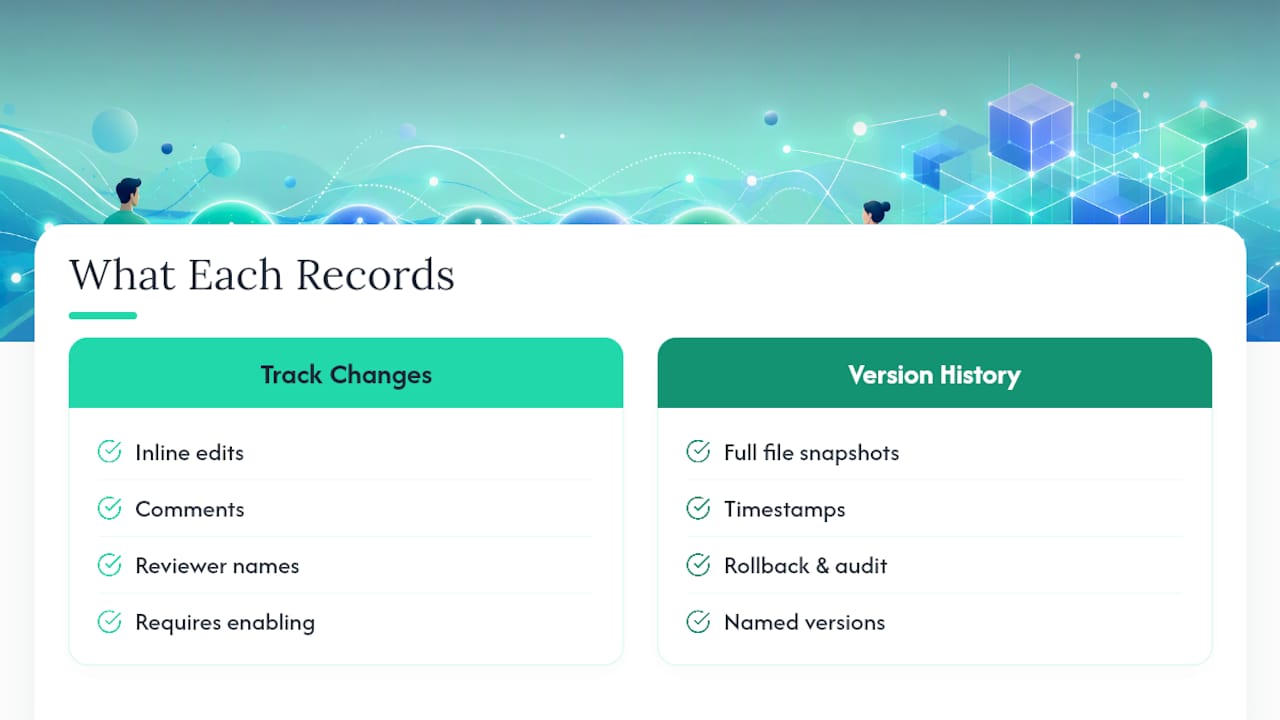
Track Changes captures inline edits, comments, and reviewer names as you type, but it only works if someone actually turns it on first. Version history takes a snapshot of the entire file at a point in time, which makes it the better tool for rollback, audits, or proving what a document looked like on a specific date. As Refine, Track Changes must be enabled to capture attributed edits, while version history depends on how and when the file gets saved.
The smart move: use Track Changes during active review so feedback stays visible, then create a named version once a client approves the draft. That gives you both a readable edit trail and a clean audit record.
Why Can't You See Version History, and How Do You Fix It?
Missing version history almost always comes down to one of three causes, and each has a quick fix.
- The file lives in the wrong place. Local files saved only to your hard drive don't track versions. Move the file to OneDrive, SharePoint, Google Drive, or Dropbox, since all three actively store version snapshots.
- You're signed in with the wrong account, or you only have viewer access. Editors can see full history; viewers frequently cannot. Confirm you're logged into the account with edit permissions before assuming the history is gone.
- An admin setting is capping what you can see. SharePoint libraries let administrators limit how many versions get stored, and check-out requirements affect when new versions are even created. If your team requires check-out before editing, versions only save on check-in, not on every keystroke.
If none of that resolves it, save a fresh copy to a cloud location that supports versioning and export the current state as a backup before you make more changes.
Best Practices for Managing Version History on Client Projects
Version history only helps you if you actually use it with intention. Random autosaves pile up fast, and without a system, you'll waste time hunting for the one version that actually matters.
Start with naming. Instead of letting a document accumulate fifty nameless snapshots, create named versions at real milestones: "Client Review v1," "Revisions Complete," "Final Approved." That single habit turns a messy timeline into a clear record anyone on your team can scan in seconds.
A few rules worth adopting:
- Name a version the moment a client signs off, not days later when you might forget the context.
- Note who approved the version directly in the file comment or version label.
- Set a retention policy: decide which named milestones you'll keep permanently and which autosaves get cleaned out monthly.
- Tie every e-signature or contract approval to the specific named version it applies to, never to "whatever the file looked like around that time."
Pro Tip: Before you archive a project, export the final approved version as a PDF and store it next to your changelog notes. That pairing gives you a human-readable file and a timestamped record in case a client ever questions what was delivered.
This kind of discipline pays off in ways beyond neatness. When contracts and approvals are tied to specific versions, you've built the foundation of a defensible online contract management system, and your client approval workflow moves faster because nobody has to ask "which version is this actually based on?" That same clarity extends into signatures: pairing an e-signature with the correct file version removes any ambiguity about what a client actually agreed to.
How Realclient Handles Versioning and Audit Trails for Client Work
Realclient builds version tracking directly into the client portal instead of leaving it scattered across email threads and shared drives. Every file lives in one central store with a changelog attached, so you and your client can both see exactly what changed and when. Permissions are granular, meaning clients see only what you grant them, and e-signatures stay linked to the exact document version they were signed against.

The result shows up in the numbers: freelancers and agencies using Realclient invoiced over $48 million through their portals last year, largely because approvals move faster when nobody's digging through old email chains to find the "real" final file. For details on how data stays protected and how changelogs get recorded, Realclient's security page breaks down the specifics.
A Freelancer's Checklist for Client Handoff
Here's what I'd tell any freelancer or small agency before sending a final deliverable: create a named version the moment a milestone gets approved, log who signed off, lock the final file so it can't be quietly edited, and export an audit copy for your own records.
Skipping these steps might save you two minutes today, but it costs you an hour of digging later when a client asks "wait, which version did we approve?" Clean version hygiene isn't just tidiness. It's what makes clients trust your process and pay their invoices faster.
— Real
Get Version History and Client Approvals in One Place
Realclient replaces the scattered mess of email attachments, shared drive folders, and separate e-signature tools with one branded portal where every file version, approval, and payment lives together.
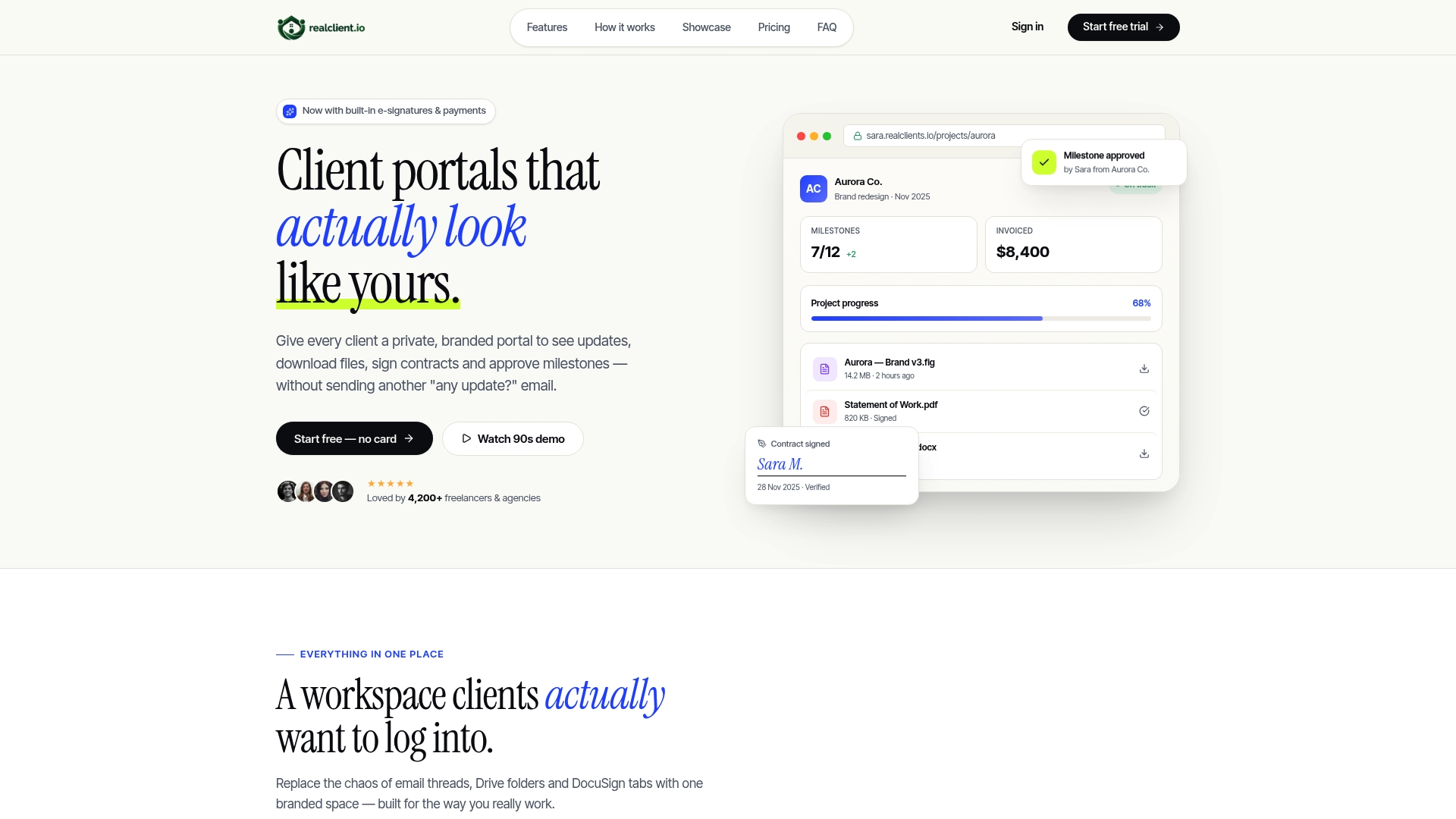
Instead of hunting through old threads to figure out which draft a client actually approved, Realclient's changelog shows the full history automatically, and every signed contract links back to the exact version it applies to. That kind of defensible audit trail matters most when a client disputes scope or timing months after delivery. Realclient's security page covers the technical details, and the pricing page breaks down plans for solo freelancers up through growing agencies. If you're tired of piecing together version history from scattered files and inboxes, set up your Realclient portal and centralize the whole workflow today.
Where to Go for Official Version History Documentation
For the exact click paths on each platform, check Microsoft's guide to viewing previous file versions, SharePoint's versioning documentation, and Google's version history help page. For the deeper distinction between Track Changes and true version control, refine.dev's breakdown is worth a read.
Sources
- View previous versions of Office files | Microsoft Support
- Find what's changed in a file - Computer - Google Docs Editors Help
- Refine